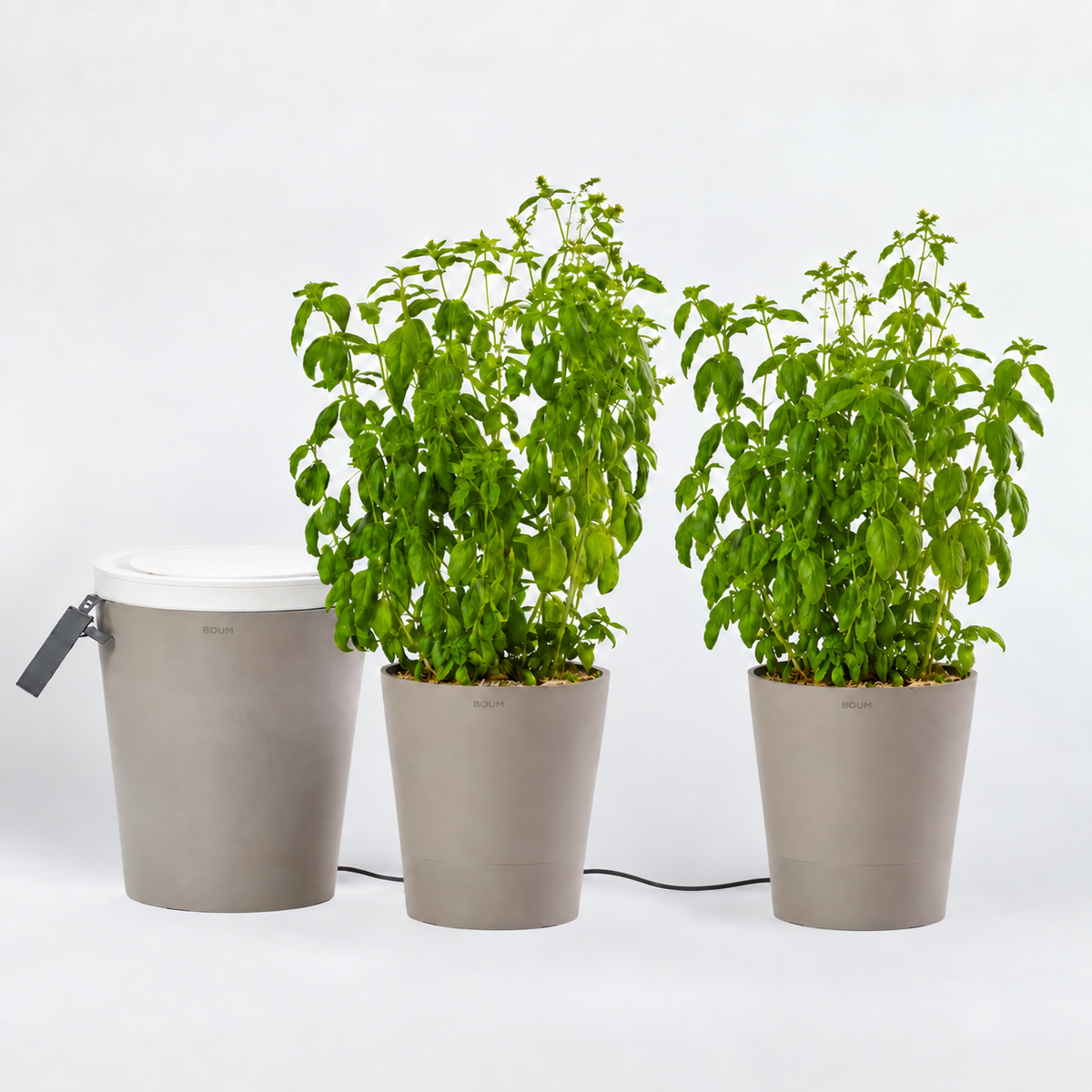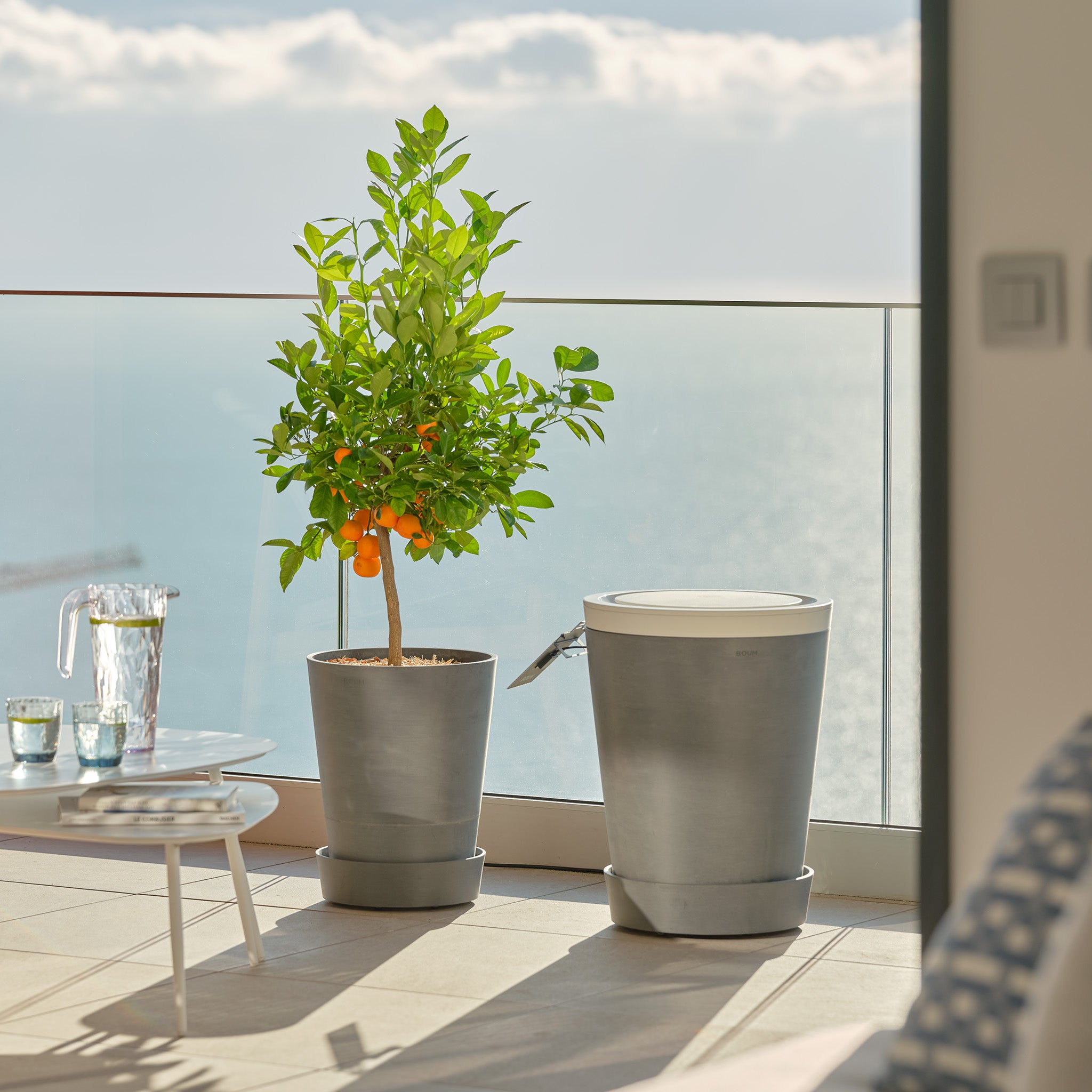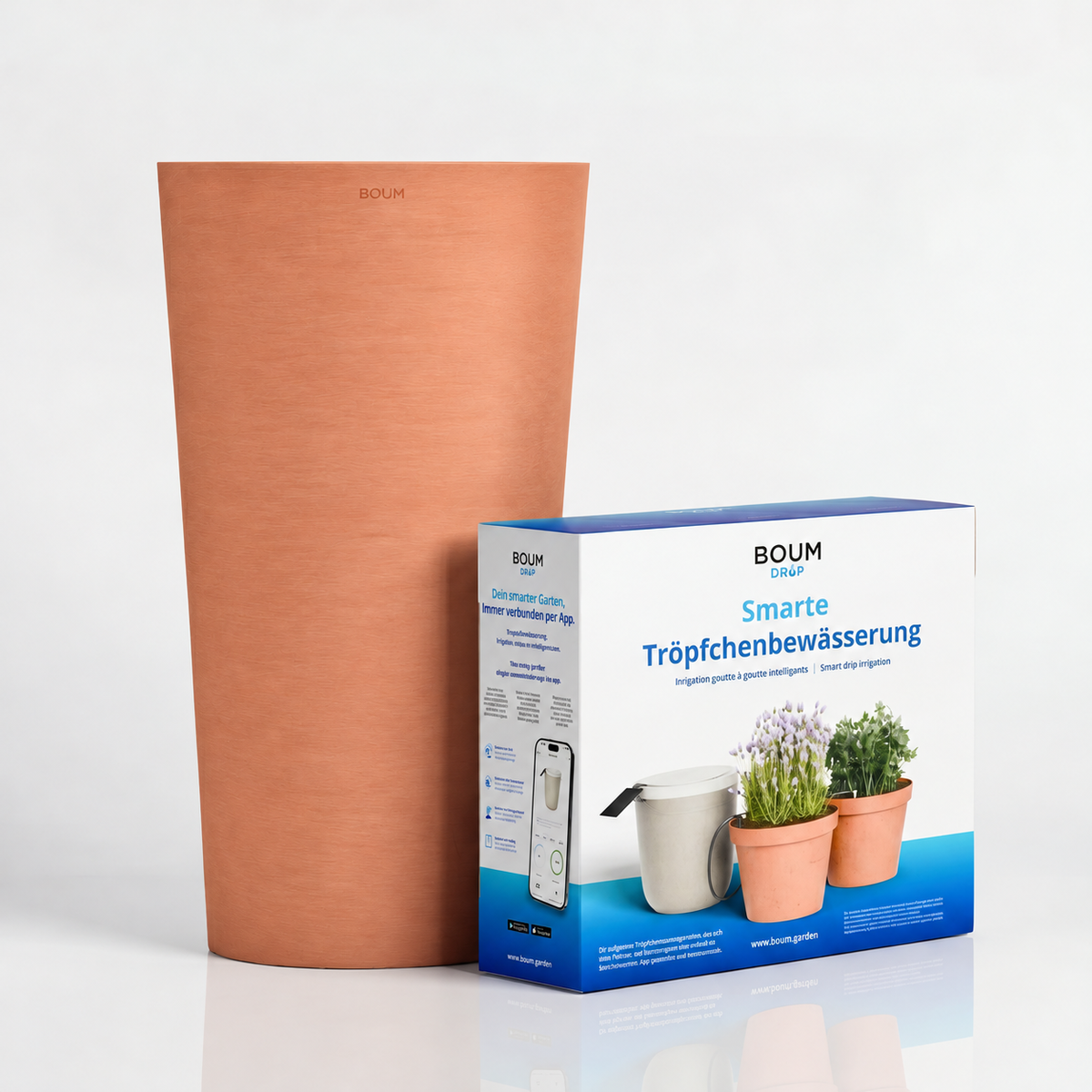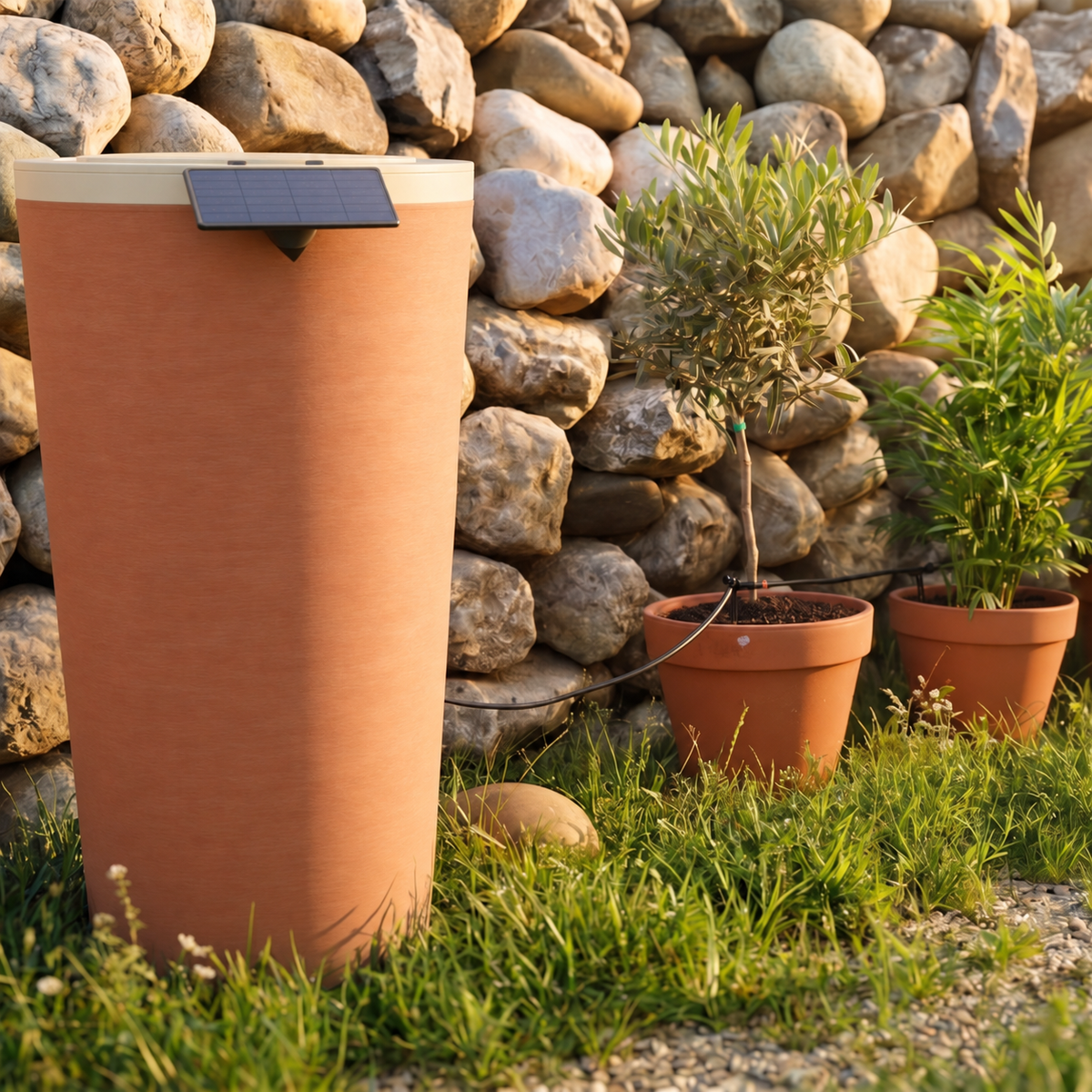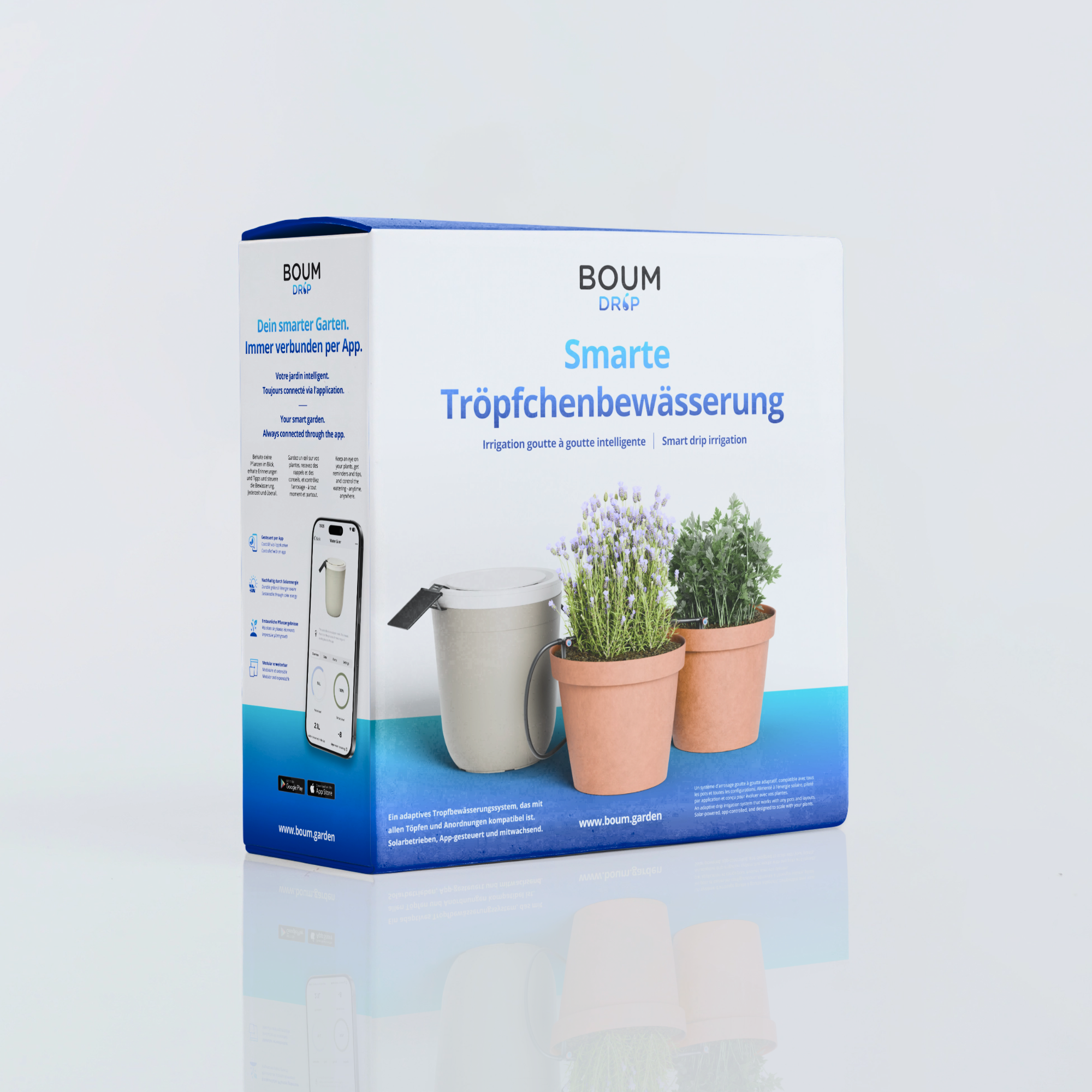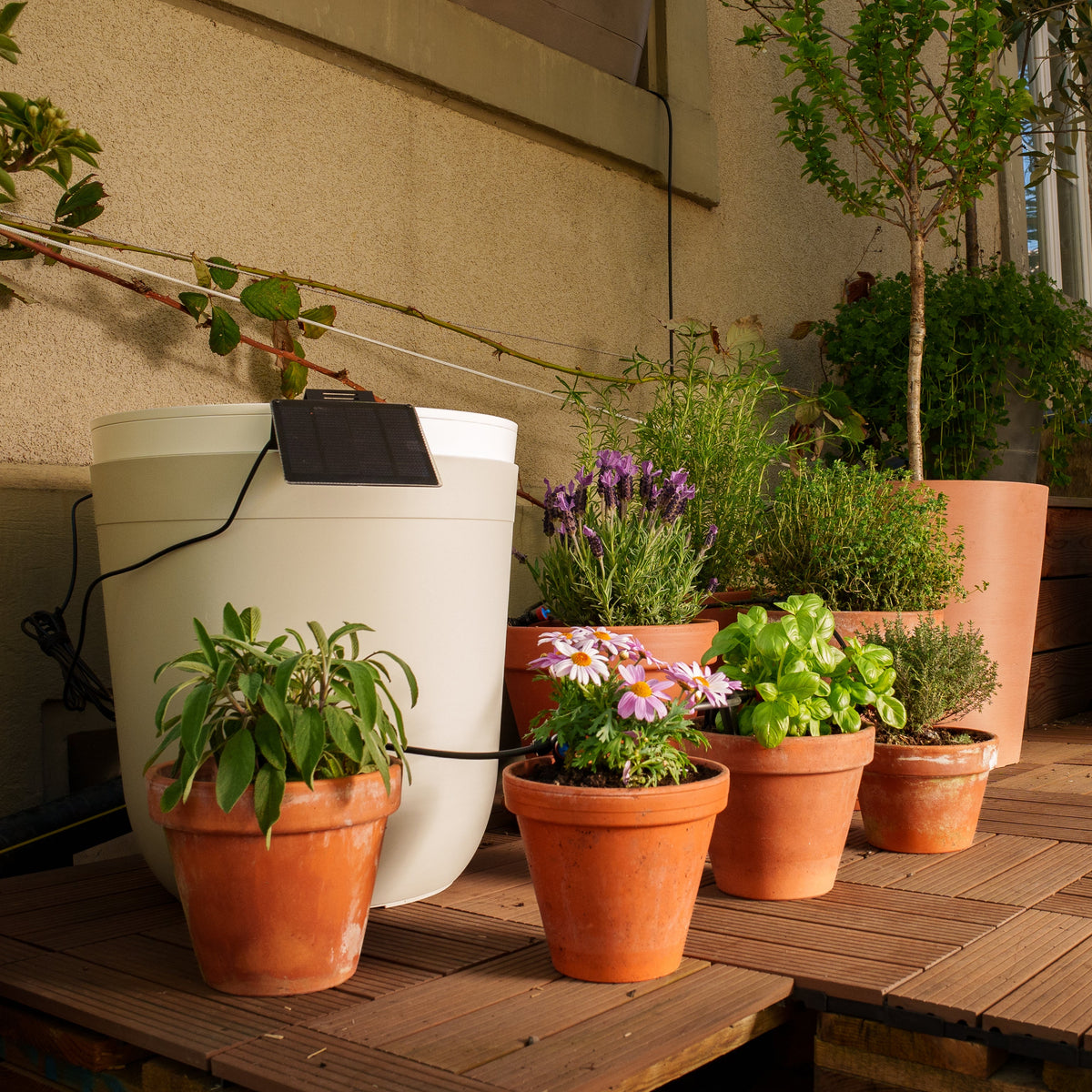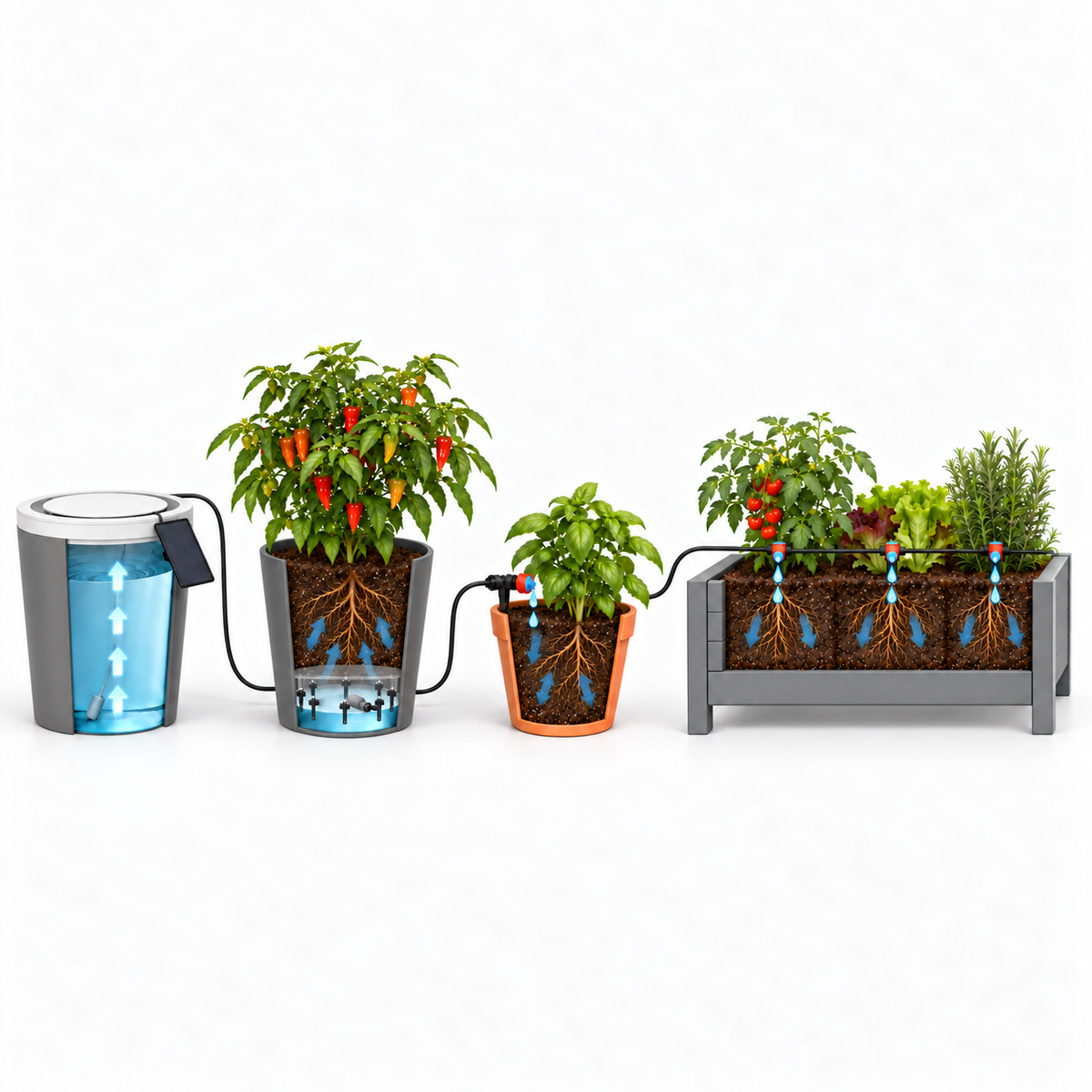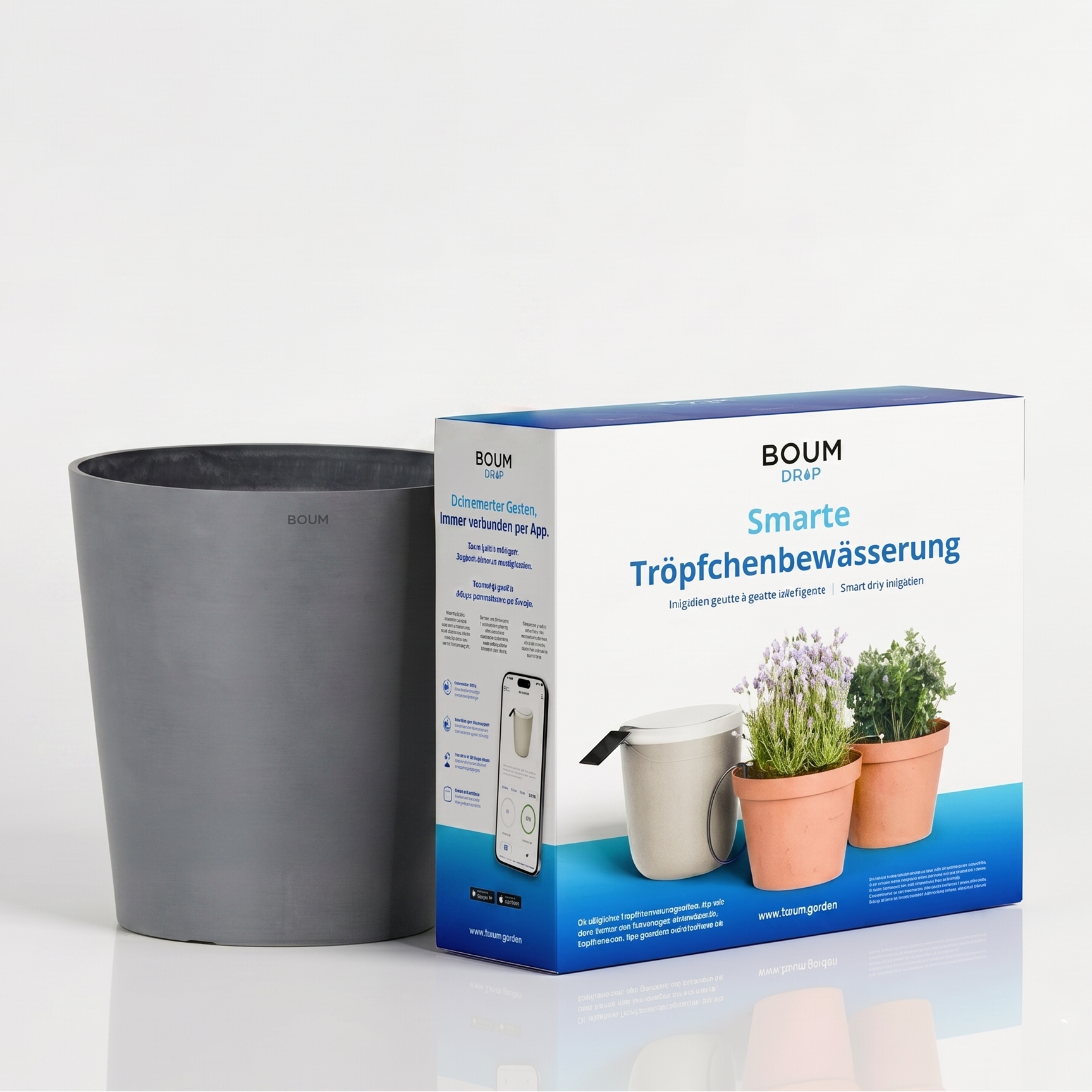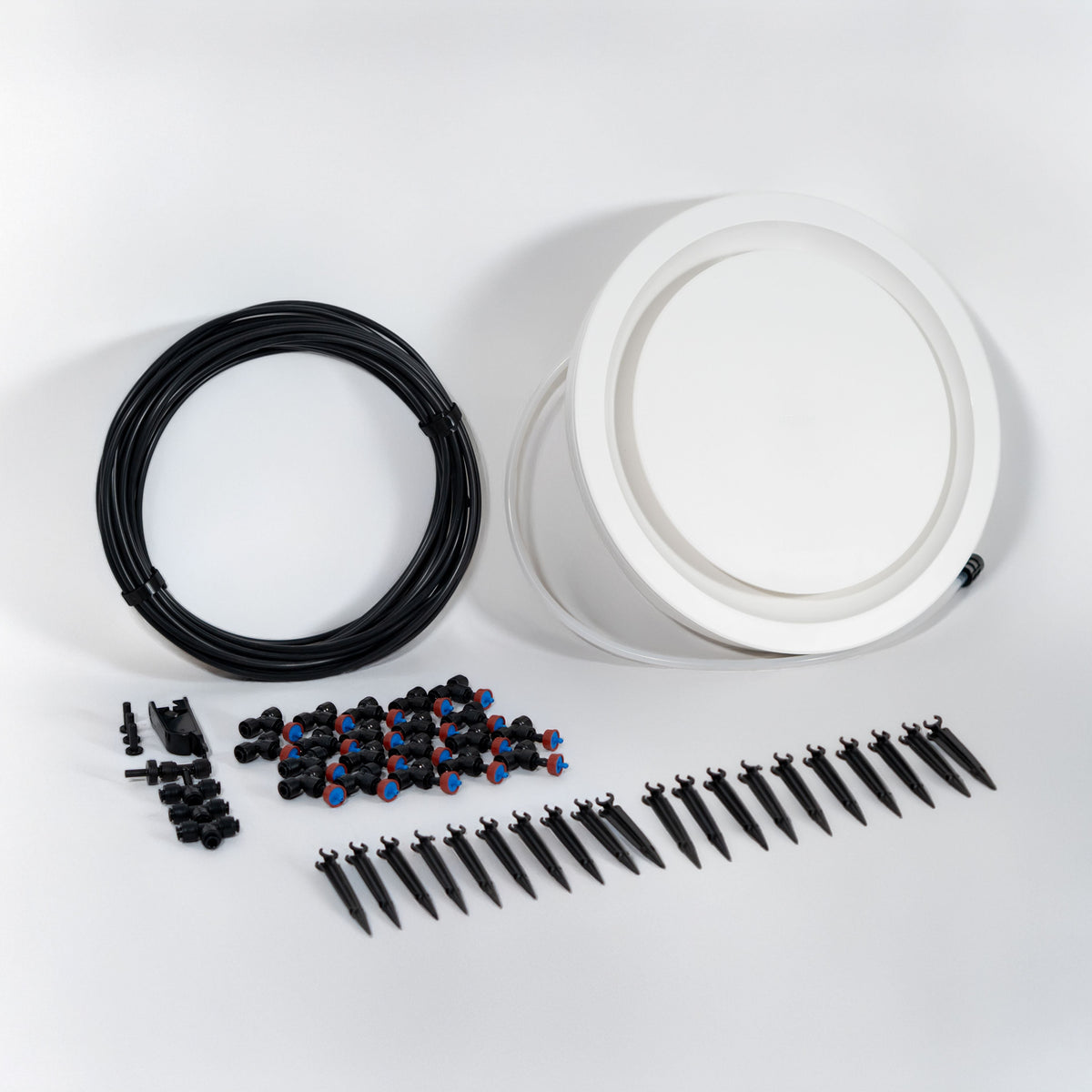
In this article, we'll show you how to correctly set up and configure the Boum system controller. In the app, you'll find detailed step-by-step instructions, including videos, and you can directly select whether you're using a Boum 2 or Boum 3 controller.
Overview: Setting up the Boum Controller
Setting up the Boum Controller
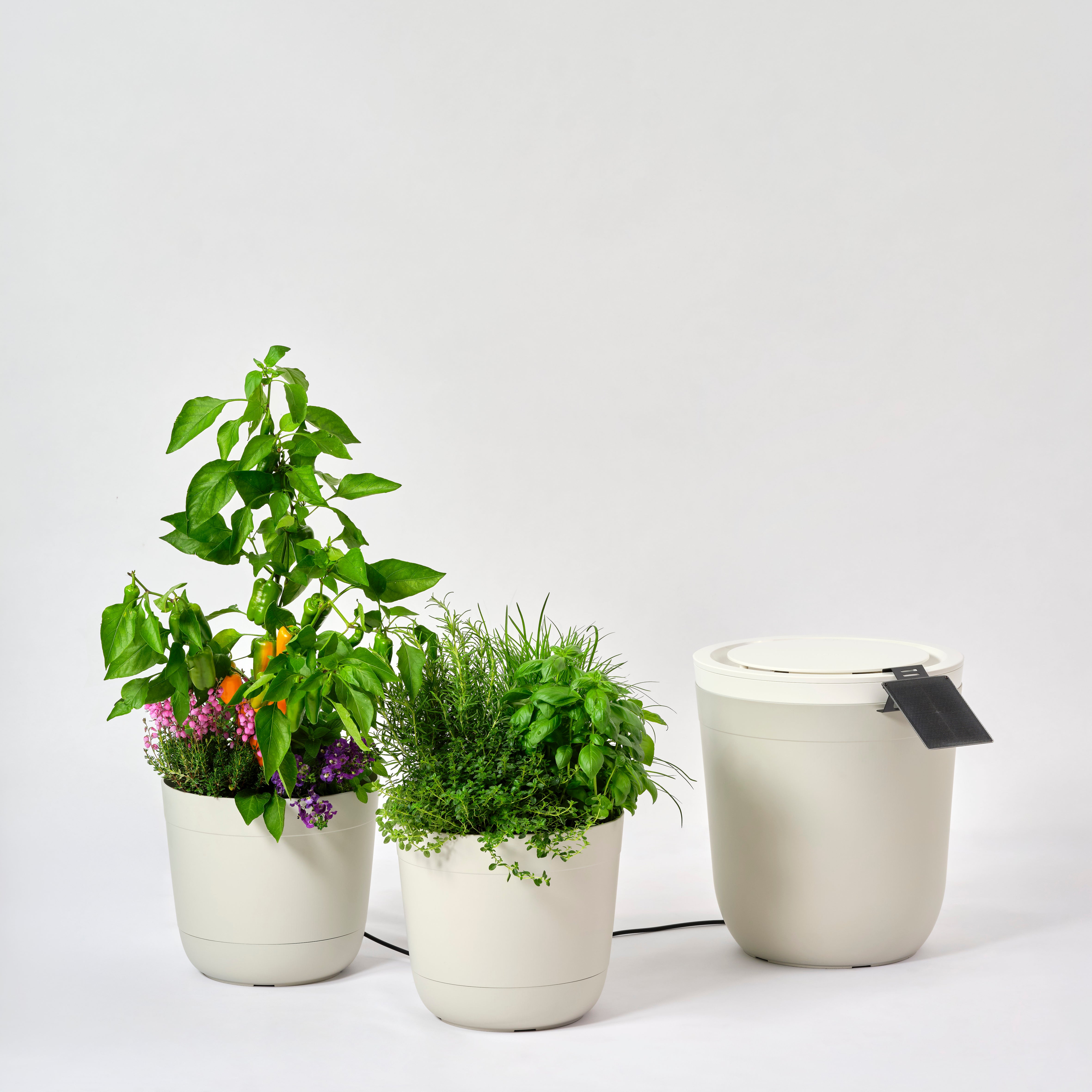
Remove the controller from its packaging and place it on the water tank.
Connecting the Ports
Attach the T-piece, which is included in the accessory bag with the controller, to the back of the controller. This allows you to route the hose away from the tank on two sides if needed. If you only want to route the hose to one side, you can insert it directly into the controller without the T-piece.
Now connect the solar panel to the controller. For the Boum 3 controller, the solar panel is screwed into the port clockwise. For the Boum 2 controller, the solar panel is plugged into the protruding cable of the controller. Then place the solar panel in a sunny spot (e.g., on the tank or directly on the balcony railing).
Checking the Power Supply
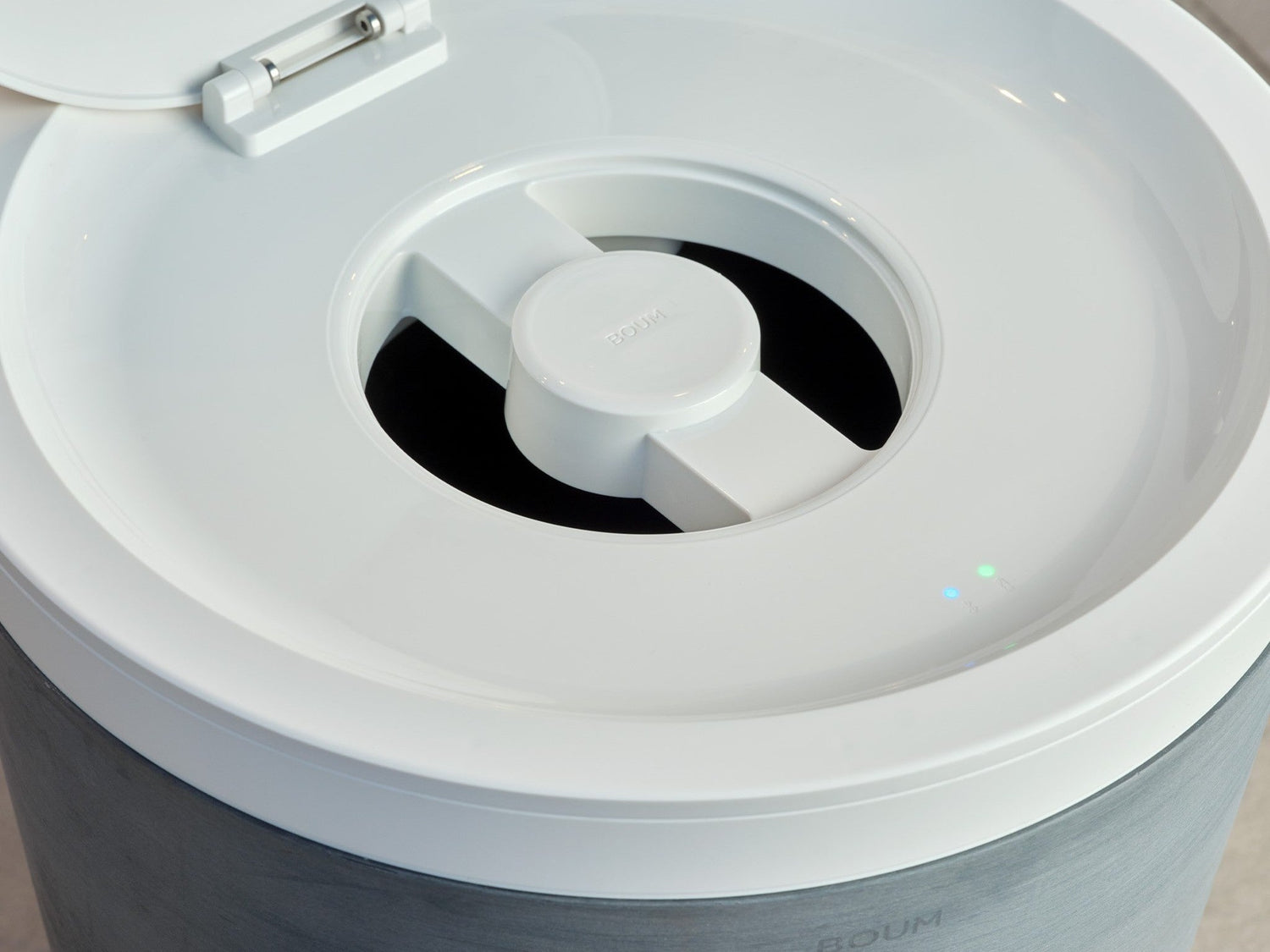
Check if the system is receiving enough power. The LED under the lid must glow green. Note: On the Boum 2 controller, the LED is a bit dimmer and therefore relatively difficult to see in bright sunlight.
Additional info for indoor use: For indoor use, instead of the solar panel, use a standard 5V power adapter (e.g., a phone charger). You can either leave the system constantly plugged in indoors, or charge it overnight when the battery is low.

Configuring the Controller
Once the controller is on the tank and connected to the solar panel and pots, you can proceed with the installation in the Boum App.
Installation in the App
First, download the Boum App from the Play Store or the App Store. Create an account and then add the controller in the app. To do this, activate Bluetooth on your mobile device and turn on the controller (the power button is on the underside of the controller).
Adding the Controller
The controller should be blinking blue at this moment and be in pairing mode. Now follow the step-by-step instructions in the app to complete the installation.